






• Buy Followers
    • Instagram Services
      • Buy Instagram Followers
      • Buy Instagram Likes
      • Buy Instagram Views
      • Buy Instagram Comments
    • YouTube Services
      • Buy YouTube Views
      • Buy YouTube Subscribers
      • Buy YouTube Likes
      • Buy YouTube Comments
    • TikTok Services
      • Buy TikTok Followers
      • Buy TikTok Likes
      • Buy TikTok Views
    • Facebook Services
      • Buy Facebook Page Likes
      • Buy Facebook Followers
      • Buy Facebook Post Likes
      • Buy Facebook Views
    • Twitter Services
      • Buy Twitter Followers
      • Buy Twitter Likes
      • Buy Twitter Retweets
  • Blog
  • Categories
    • Instagram
    • YouTube
    • TikTok
    • Facebook
    • Twitter
  • Contact
No Result
View All Result
Zeru
  • Buy Followers
    • Instagram Services
      • Buy Instagram Followers
      • Buy Instagram Likes
      • Buy Instagram Views
      • Buy Instagram Comments
    • YouTube Services
      • Buy YouTube Views
      • Buy YouTube Subscribers
      • Buy YouTube Likes
      • Buy YouTube Comments
    • TikTok Services
      • Buy TikTok Followers
      • Buy TikTok Likes
      • Buy TikTok Views
    • Facebook Services
      • Buy Facebook Page Likes
      • Buy Facebook Followers
      • Buy Facebook Post Likes
      • Buy Facebook Views
    • Twitter Services
      • Buy Twitter Followers
      • Buy Twitter Likes
      • Buy Twitter Retweets
  • Blog
  • Categories
    • Instagram
    • YouTube
    • TikTok
    • Facebook
    • Twitter
  • Contact
No Result
View All Result
Zeru
No Result
View All Result

Popular Services

Buy YouTube Views
Buy TikTok Followers
Buy Twitter Followers
Buy Facebook Followers
Buy Instagram Likes
Buy TikTok Likes
Buy Instagram Views
Buy TikTok Views
Buy Instagram Comments
Buy YouTube Likes
Buy Twitter Likes
Buy YouTube Comments
Buy Facebook Views
Buy Facebook Page Likes
Buy Twitter Retweets
Buy Facebook Post Likes
Buy YouTube Subscribers
Buy Instagram Followers

How to Make Your Profile Private on Facebook

Lizzie Yates by Lizzie Yates
in Facebook
3 min read
72
How to Make Your Profile Private on Facebook
15
SHARES
1.5k
VIEWS
Share on FacebookShare on Twitter

Contents

  • How to Make Your Profile Private on Facebook
  • Change privacy settings for previous posts
  • Edit privacy settings for friends list
  • Hide information on your profile
  • Hide your profile picture

How to Make Your Profile Private on Facebook

how to make your profile private on facebook

If you’ve ever wondered how to make your profile private on Facebook, read this article! In this article we’ll talk about changing the privacy settings for previous posts, editing the privacy settings for your friends list, and hiding information on your profile. You can also hide your profile picture if you want complete privacy. But, first, let’s cover the basics. How to make your profile private on Facebook? Follow these steps and you’ll be well on your way to privacy.

Change privacy settings for previous posts

Facebook users can limit the visibility of past posts by changing the settings on their privacy. Using the Activity Log feature, users can see which of their posts are public and which are private. These settings can be changed in bulk, if necessary. On the same subject : How to Temporarily Deactivate Facebook. For example, they can set up their privacy settings to only allow friends to view them. Alternatively, they can make all posts private, allowing friends only to see the ones they’ve already liked.

If you have made recent public posts, you can change the privacy settings for those posts in your friends’ timeline. You can change the settings for previous posts by visiting your Facebook Privacy Settings. To limit past public posts, click the “friends” or “friends of friends” option. Changing these settings is not an action you can take in one go, though; you’ll need to change them individually. You can access this setting from the web interface or the mobile app’s privacy shortcuts.
Read also :
How to See Who Views Your Facebook Profile
How to See Who Views Your Facebook Profile To see who views…

Edit privacy settings for friends list

The Facebook privacy settings allow you to change the level of privacy that your friends can see about you. If you want to show certain people only certain content, you can change the visibility of the ‘Friends’ list. Read also : How to Appear Offline on Facebook. To do so, click on the ‘See All’ button at the bottom of your profile. Then tap on the ‘View as’ option to see your profile to people who are not friends.

You can edit the privacy settings of your friends list on Facebook anytime. To do this, simply go to your profile page and click on the three horizontal dots in the top right corner. On the next screen, click the ‘Edit Privacy’ link. Choose the option that corresponds to your wishes. After changing the settings, Facebook will automatically save the changes. You can also delete friends by clicking the ‘delete’ link at the bottom of their profile.

This may interest you :
How Do I Get My Facebook Back?
How Do I Get My Facebook Back? So, you’ve lost your Facebook…

Hide information on your profile

If you’d like to hide certain information on your profile on Facebook, you can do so easily. This includes your city, date of birth, hobbies, and followers. You can also hide information related to your relationship status, your previous cover photo, your sentimental situation, and your current city, study house, or work location. This may interest you : How Do You Tag Someone on Facebook?. If you feel uncomfortable sharing this information with the world, you can always edit your settings. To hide information on your profile, you need to log in to your account and go to settings.

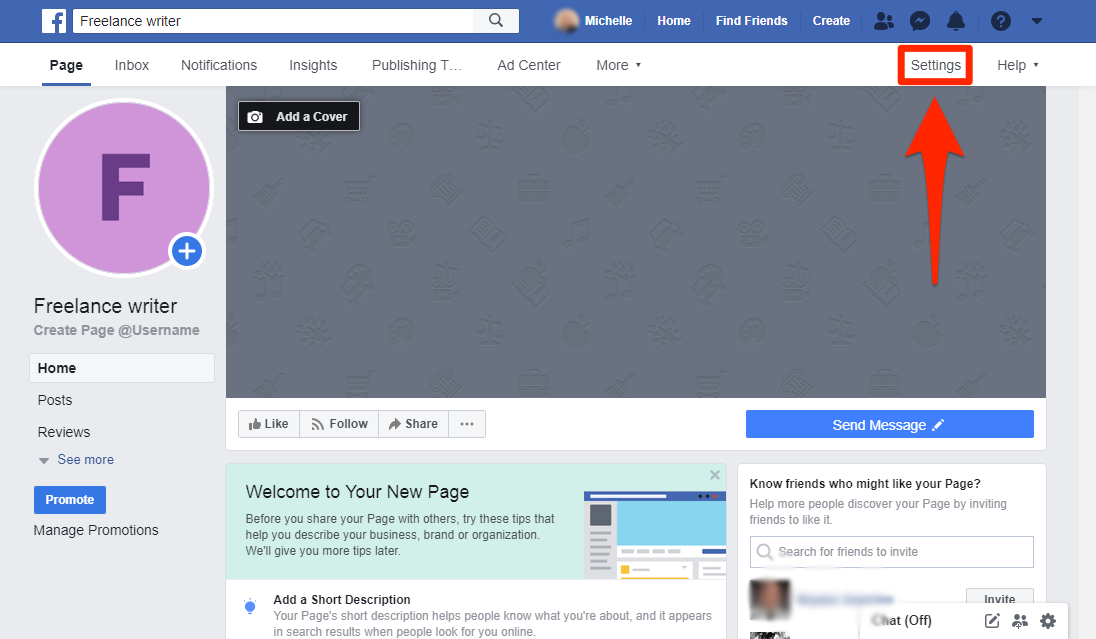
To hide information on your profile on Facebook, you need to go to the Settings menu. Navigate to the Settings and Privacy menu. Click on Your Facebook Information. Next, click on “Your Profile Information.” Follow the instructions that appear on the screen. To hide your profile, go to “Privacy Settings” and select “How people find and contact you.” This will prevent people from looking you up by email or using your phone number. You can disable your account for up to a week before you regain access to it.
See the article :
Is Facebook on the Decline?
Is Facebook on the Decline? The recent Recode report has prompted many…

Hide your profile picture

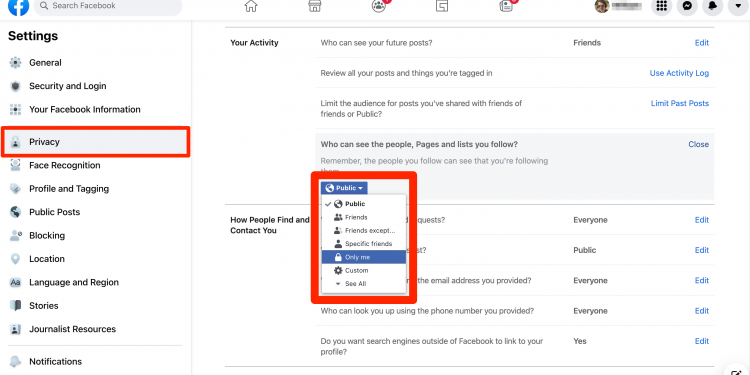
You can choose to hide your profile picture from anyone you want on Facebook, and limit comments only to friends. You can also disable the comments that show up in your status update. However, this only applies to people who are friends with you. If you don’t want anyone to know your picture, you should choose ‘Only me’. That way, everyone who sees your profile picture won’t be able to comment on it.

The first step is to choose the picture that you wish to hide. You can change it by clicking on the figurehead icon or selecting “Public” under the picture privacy setting. If you want your profile picture to be hidden, choose this option. Otherwise, your profile picture will be visible to anyone who visits your page. This method allows you to limit who can view your profile pictures while still allowing others to see your name. After doing this, you can easily post and reply to messages on Facebook.


Related Posts:

  • How to Make Facebook Profile More Private
  • How to Make Facebook Private
  • How to Hide Friend List on Facebook
  • How to Private Facebook
  • How to Change Your Profile Picture on Facebook
  • How to Make Photos Private on Facebook
Was this article helpful?
YesNo

You might also like

Troubleshooting Instagram Posting Issues

Troubleshooting Instagram Posting Issues

How to Post Multiple Photos on Instagram Without Cropping – The Ultimate Guide

How to Post Multiple Photos on Instagram Without Cropping – The Ultimate Guide

How Do I View My Instagram Likes on My PC?

How Do I View My Instagram Likes on My PC?

How to Pause Reels in Instagram

How to Pause Reels in Instagram

How to Make Instagram Bio Center

How to Get Verified on YouTube: How to Speed Up the Process

How to Get Verified on YouTube: How to Speed Up the Process

Categories

  • Facebook
  • General
  • Instagram
  • LinkedIn
  • Marketing
  • Pinterest
  • Social Media
  • TikTok
  • Twitter
  • YouTube


Making Your Brands Popular.

(347) 875-0972

[email protected]

© 2024 Zeru.
All Rights Reserved.

DMCA.com Protection Status

Instagram Services

  • Buy Instagram Followers
  • Buy Instagram Likes
  • Buy Instagram Views
  • Buy Instagram Comments

YouTube Services

  • Buy YouTube Views
  • Buy YouTube Subscribers
  • Buy YouTube Likes
  • Buy YouTube Comments

TikTok Services

  • Buy TikTok Followers
  • Buy TikTok Likes
  • Buy TikTok Views

Facebook Services

  • Buy Facebook Page Likes
  • Buy Facebook Followers
  • Buy Facebook Post Likes
  • Buy Facebook Views

Twitter Services

  • Buy Twitter Followers
  • Buy Twitter Likes
  • Buy Twitter Retweets

Quick Links

  • FAQ
  • Blog
  • Contact
  • About
  • Terms and Conditions
  • Privacy Policy
No Result
View All Result
  • Buy Followers
    • Instagram Services
      • Buy Instagram Followers
      • Buy Instagram Likes
      • Buy Instagram Views
      • Buy Instagram Comments
    • YouTube Services
      • Buy YouTube Views
      • Buy YouTube Subscribers
      • Buy YouTube Likes
      • Buy YouTube Comments
    • TikTok Services
      • Buy TikTok Followers
      • Buy TikTok Likes
      • Buy TikTok Views
    • Facebook Services
      • Buy Facebook Page Likes
      • Buy Facebook Followers
      • Buy Facebook Post Likes
      • Buy Facebook Views
    • Twitter Services
      • Buy Twitter Followers
      • Buy Twitter Likes
      • Buy Twitter Retweets
  • Blog
  • Categories
    • Instagram
    • YouTube
    • TikTok
    • Facebook
    • Twitter
  • Contact

© 2023 Zeru. All Rights Reserved.

Welcome Back!

Login to your account below

Forgotten Password?

Create New Account!

Fill the forms bellow to register

All fields are required. Log In

Retrieve your password

Please enter your username or email address to reset your password.

Log In





